Git Bashでのブランチの作成/削除とマージとコンフリクト時の対応方法です。
| 確認環境 ・Windows10 ・git 2.19.1 |
目次
1.環境の準備
git initを実行し、テスト用のファイルを作成します。
サンプルでは、EドライブのTest1フォルダ配下にtest1.txtというファイルを作成しました。
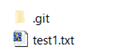
ファイル内は以下のように記述しコミットまで行います。
こんにちは
2.ブランチを作成する
1.git branch ブランチ名で、ブランチを作成します。
以下は、testbranchというブランチ名にしています。
git branch testbranch2.git branchでブランチの状況を確認できます。
アスタリスクは、現在使用しているブランチを示します。
git branch
* master
  testbranch
3.git checkout ブランチ名で、作成したブランチに移動します。
以下は、testbranchというブランチに移動しました。
git checkout testbranch
Switched to branch 'testbranch'
4.git branchで移動したこと確認します。
git branch
  master
* testbranch
5.git logで確認するとブランチを移動する前に行ったcommitがあることわかります。
git log
commit 9fc53f53a159e3d71a6406760f3f372bbdde7502 (HEAD -> testbranch, master)
Author: testuser123abc <test@example.com>
Date:   Sun Nov 25 09:13:04 2018 +0900

    1st
3.ブランチをマージする
1.vimコマンドでブランチのファイルを修正します。vim test1.txt
修正前
こんにちは修正後
こんにちは
ハロー
2.git addとgit commitでコミットまで行います。
git add .
git commit -m "syuusei"
3.git checkout masterで、masterに戻ります。
git checkout master
Switched to branch 'master'
4.git merge ブランチ名でマージ処理を行います。
git merge testbranch
Updating 9fc53f5..fe9a85e
Fast-forward
 test1.txt | 1 +
 1 file changed, 1 insertion(+)
5.vimコマンドで確認するとブランチで行った修正が反映されています。vim test1.txt
4.コンフリクト時の対応方法
1.vimコマンドでmasterとブランチのファイルを修正しそれぞれコミットまでします。vim test1.txt
修正前
こんにちは
ハロー
修正後(master)
1.こんにちは
ハロー
修正後(ブランチ)
a.こんにちは
ハロー
2.masterで、git mergeを行うとコンフリクトが発生します。
git merge testbranch
Auto-merging test1.txt
CONFLICT (content): Merge conflict in test1.txt
Automatic merge failed; fix conflicts and then commit the result.
3.vimでファイルを開くと以下のようになっています。vim test1.txt
<<<<<<< HEAD
1.こんにちは
=======
a.こんにちは
>>>>>>> testbranch
ハロー
4.今回はブランチの方を採用するとします。
上記ファイルをvimで開いて1,2,3,5行目を削除し保存します。vim test1.txt
a.こんにちは
ハロー
5.git addとgit commitを行って完了です。
5.ブランチを削除する
ブランチを削除する場合は、git branch -d ブランチ名を入力します。
git branch -d testbranch
Deleted branch testbranch (was 9eb9e4f).
関連の記事
gitをインストールする手順 (Windows)
Git Bashで操作(レポジトリの作成からコミットまで/Windows)